Introduction
Glossary
Sign-in Options
You can authenticate yourself on Multi-Function Devices (MFDs) with various methods.
You have the following sign-in options available:
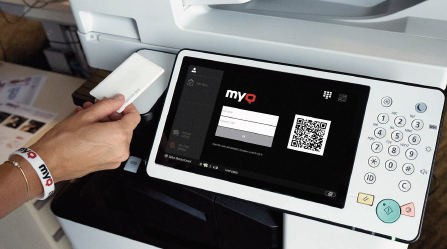
- ID Card (only applies to the embedded terminals)
- PIN
- External Authentication
Microsoft SSO
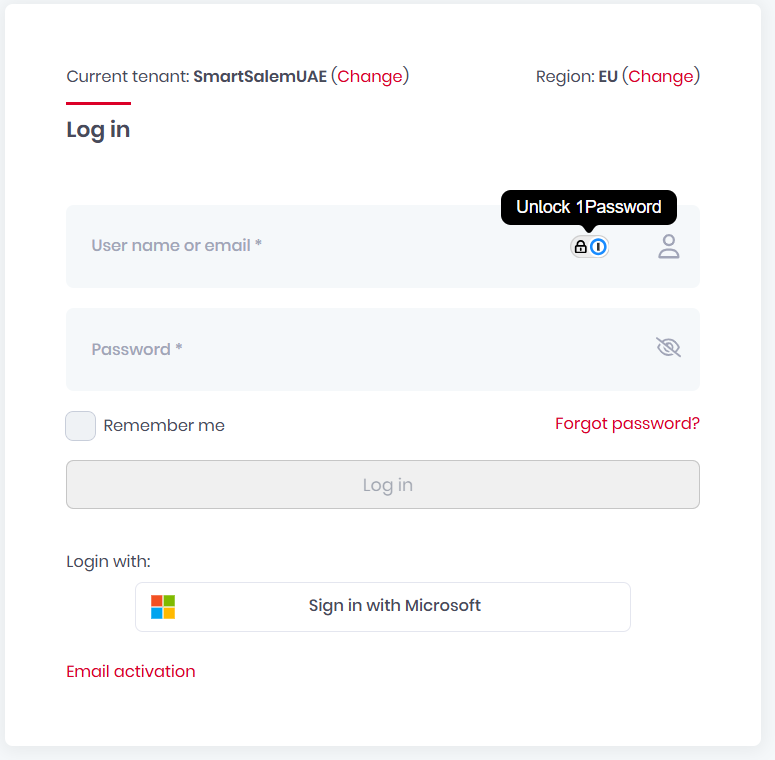
Smart Salem uses Microsoft Entra ID, you have the option to authenticate with Microsoft single sign-on. If you are not signed in to Microsoft in the browser,
- you are forwarded to the Microsoft login page to sign in and then logged into MyQ with the provided account.
If you are signed into two Microsoft accounts,
- you are forwarded to the Microsoft login page and are given a choice to select the account to continue with.
MyQ Roger webiste link : https://eu.roger.myq.cloud/web/account/login
Tenant: SmartSalemUAE
Adding a printer on windows:
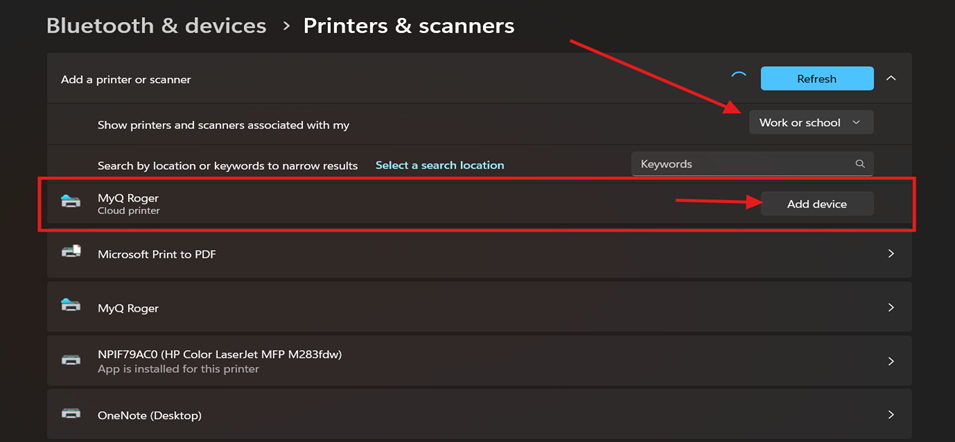
- Go to Settings -> Printer & Scanner
- Add device
- on Show printers and scanners associated with my select work or schoolAdd device
Scan
Easy Scan allows you to scan with a single touch. After you tap this action, the page is immediately scanned to a predefined destination. Your administrator can define multiple destinations where the scanned document can be sent to by setting up multiple Easy Scan actions (e.g. Easy Scan to Email, Easy Scan to Folder, Easy Scan to OneDrive, etc.).To
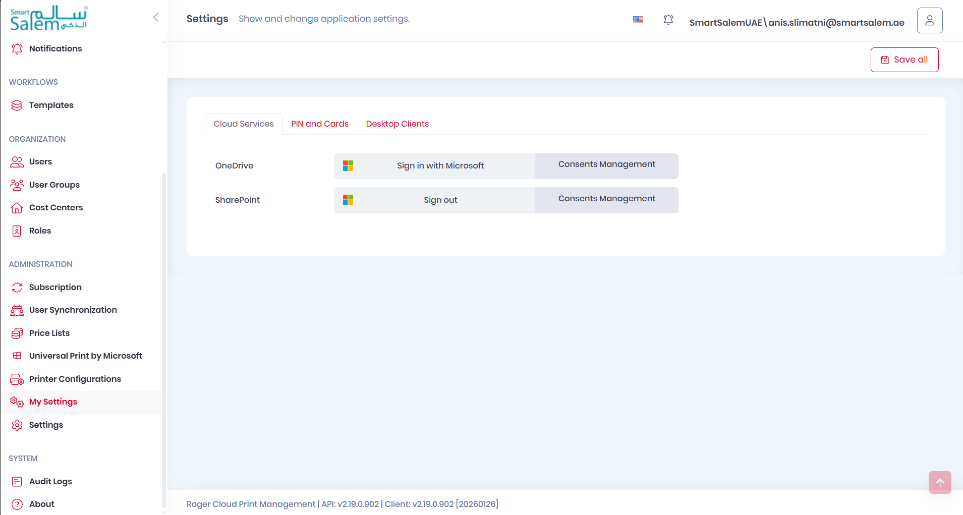
be able to use easy scan to OnDrive it has to be enables your profile setting on the web platform first